

Introduction
Finding a good movie or show can take time when you have to check many apps. FlixFox brings movies, web series, live channels and sports content together in one place for Android users. FlixFox APK is an Android app for watching video content. It lets users browse titles, check categories and pick what they want to watch. You can download the APK file from the official website, as the app is not on the Google Play Store.
This guide covers what FlixFox offers, its main features and the Free and Premium plans. It also explains device requirements, how to install the app, playback settings, updates and fixes for common issues.
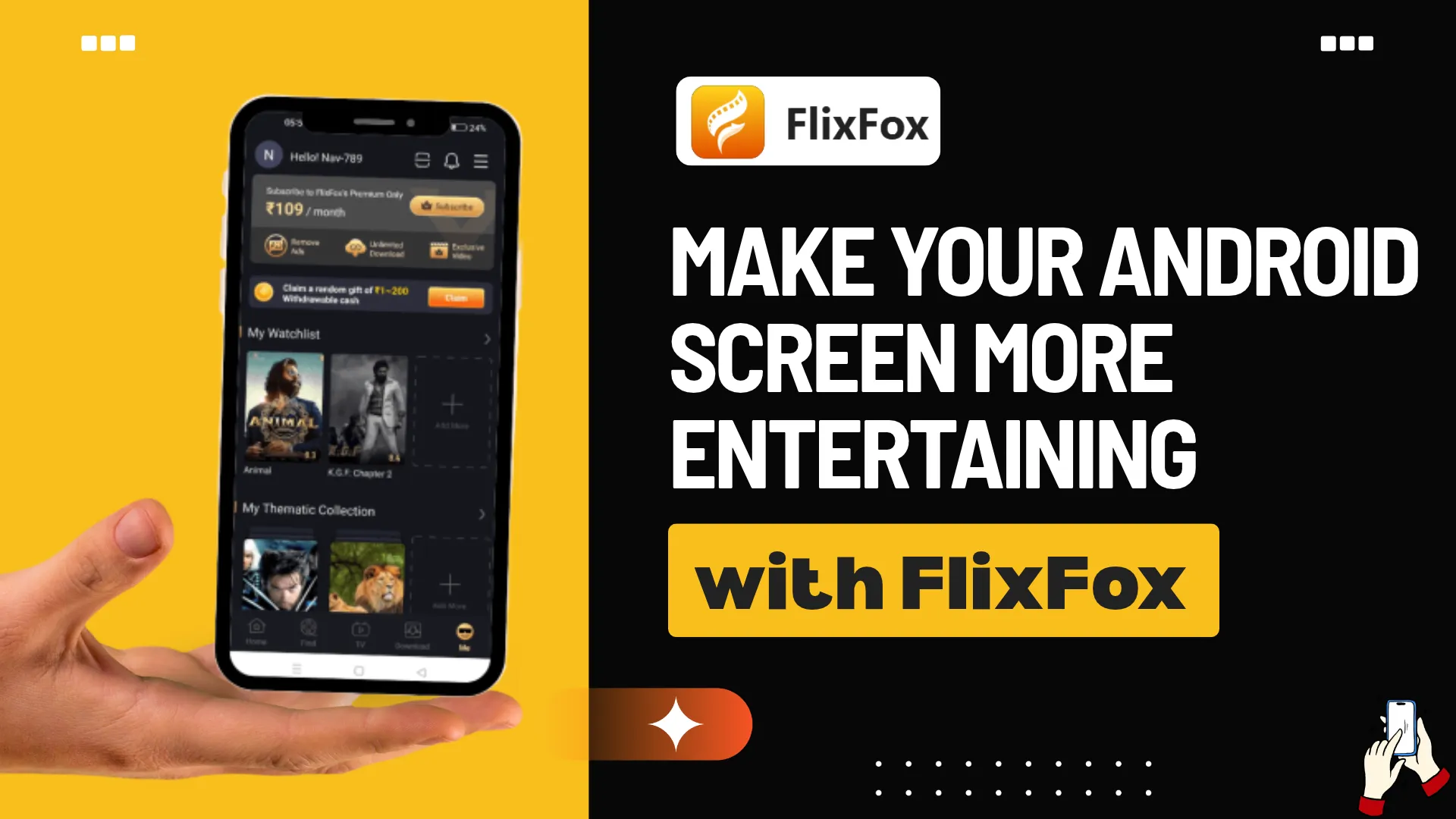
FlixFox APK with movies and entertainment options.
Understanding FlixFox and How It Works
FlixFox is distributed in APK format. APK stands for Android Package Kit. It is the file format used to install apps on Android devices. Since FlixFox is not listed on the Google Play Store, its APK file is available through the official website.
FlixFox is made for Android devices and does not have an iOS version. This means it cannot be installed directly on an iPhone or iPad. If you want to run it on a computer, you need an Android emulator.
FlixFox App Details at a Glance
Before downloading an application, check its basic details. The version number, file size and Android requirement help you identify the correct installation file and check whether your device meets the minimum requirements.
| App Detail | Information |
|---|---|
| App Name | FlixFox |
| Latest Version | v2.1.3 |
| File Size | 34.5 MB |
| Operating System | Android 6.0 and above |
| Category | Entertainment |
| Platform | Android |
| File Format | APK |
| Developer | FlixFox Official Team |
| Last Updated | September 30, 2026 |
The version number helps you compare the installed app with the latest release. The file size is also useful when checking the APK after downloading it. Before installing, compare these details with the information shown on the official FlixFox website.
What Can You Watch on FlixFox?

A wide collection of movies on FlixFox.
FlixFox brings different types of entertainment into one app. Its content options include movies, TV shows, live channels and sports. This gives users different ways to spend their viewing time, whether they prefer a full-length film, an ongoing series or live programming.
Movies Across Different Genres
Movies are a key part of the FlixFox entertainment library. Users can explore films from different genres and choose a title that suits their interests. For example, action films are a good choice for viewers who enjoy fast-moving stories, while comedy offers lighter entertainment. Other popular movie genres include romance, drama, thriller and adventure. Exploring different categories can help you find a film that matches your mood. Movie libraries can also include titles from different film industries and languages.
TV Shows and Series
TV shows and web series offer another way to watch video content. Unlike a movie, a series usually has several episodes that develop a story over time. This makes it a suitable option for viewers who prefer watching shorter parts across different sessions.
You can explore the available shows and select a title to view its episodes. Some series have multiple seasons, while others tell their stories in a single season. The episode list helps you choose where to begin and continue watching. If you are following a particular show, check the episode list before starting.
Live Sports and Other Entertainment
FlixFox also includes live entertainment options, such as sports and live channels. Unlike movies and recorded shows, live programming follows a broadcast schedule. This section is useful when you want to follow a live event or watch a channel instead of choosing a film or series. Open the live content area and check the available channels and programmes before selecting one.
For sports, look through the listed events to find the match or programme you want to watch. Live broadcasts follow schedules, so check the listing close to the event time.
Movies and Shows in Different Languages
FlixFox is great for viewers across India because it offers shows in many local languages. Besides English and Hindi, you can watch films, dubbed series, and live TV in Tamil, Telugu, Malayalam, Punjabi, and Marathi. You can also change the voice track or turn on captions inside the player. This lets you enjoy every video in the language you speak best.
Personalised Recommendations
The app learns what you like to watch so you can find fun shows fast. Each time you play a film, follow a series, or search for a title, FlixFox notes your taste. It then fills your home screen with fresh picks that match your mood. Soon, your main page brings up more genres, actors, and local videos made for you.
Getting Around the FlixFox App
The app layout uses three main tools to help you find what you want to watch.
Understanding the Home Screen
The home screen is the first page you see when you open FlixFox. It acts as your main starting point and links to every other part of the app. You can scroll through fresh uploads and popular picks right from this screen, or return here anytime you want to start a new search.
Finding Content Through Categories
Categories group titles by format so you do not have to scroll through the entire library. Open the Movies tab for films, the Series tab for shows, or the Live section for channels and sports. This works best when you know what kind of video you want to watch, even without a specific title in mind.
Searching for a Particular Title
The search bar is the fastest tool when you already know the name of a movie or show. Type the name into the search box to pull up matching results right away. Check your spelling if nothing appears, or try typing just one or two main words from the title.
FlixFox Features That Shape the Viewing Experience
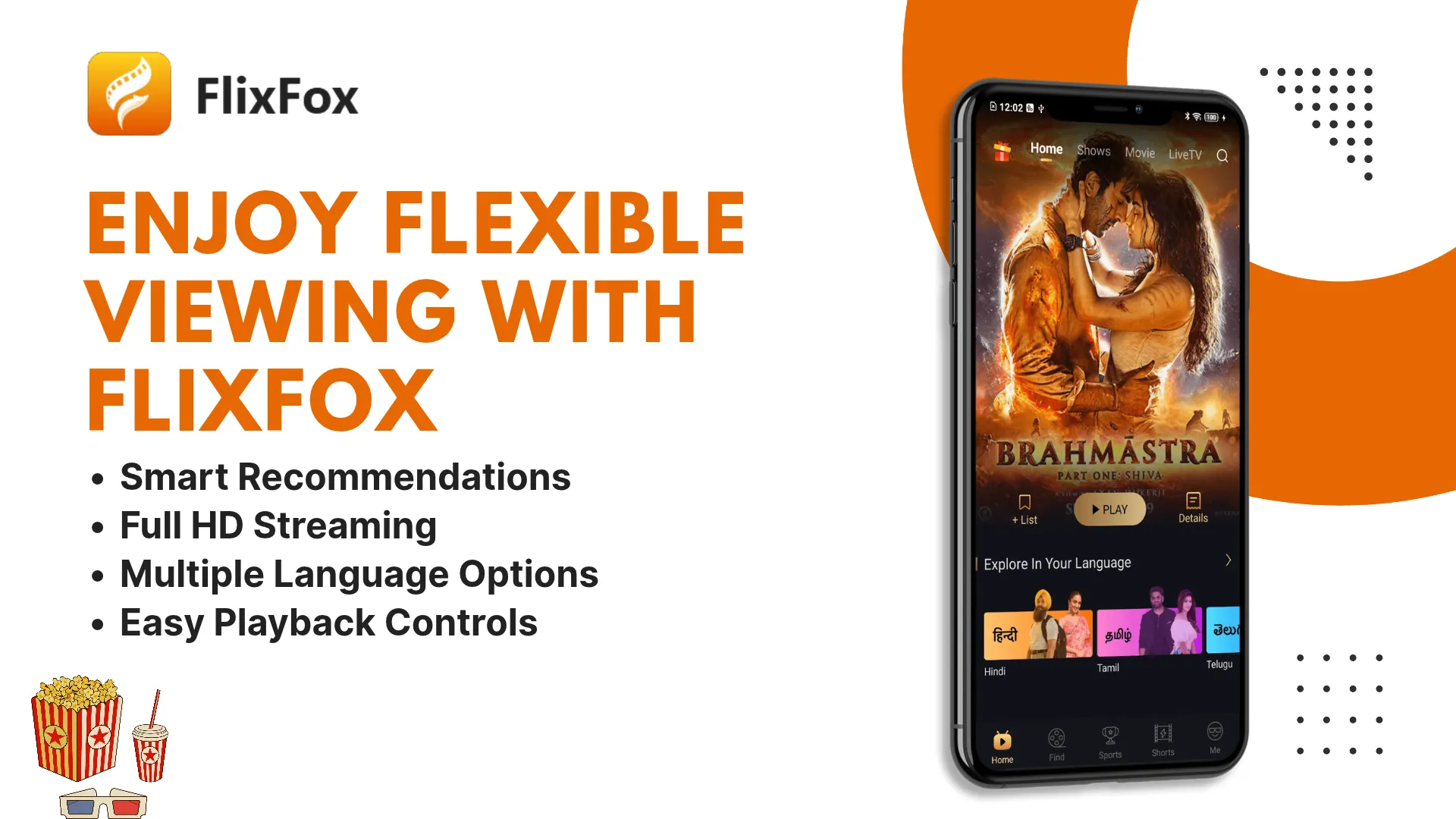
Movie recommendations and streaming options on FlixFox.
These built-in tools help you find titles and adjust how videos play on your screen.
Content Recommendations and Discovery
Finding something to watch is hard when there are many titles to pick from. FlixFox suggests movies and shows through organised lists on the main screen. These picks give you quick ideas when you do not have a specific title in mind. You can tap any suggested title to read its details and decide if you want to watch it.
Full HD Video Support
FlixFox plays videos at up to 1080p Full HD resolution. This gives you a sharp, clear picture on supported Android screens. Your actual video quality depends on the specific stream and your internet speed. You can change the resolution directly inside the video player. Pick 1080p when your connection is fast, or drop to a lower setting to save mobile data.
Language and Subtitle Choices
Many titles include multiple audio tracks and subtitle options. This helps you follow stories in a language you understand, or read along when dialogue is hard to hear. Available languages vary from one title to another. Open the language menu inside the player before you start watching to pick your preferred audio and text settings.
Convenient Playback Controls
The video player includes simple on-screen buttons to manage your viewing session. You can pause the video, resume playback, or drag the timeline bar to jump forward and backward. These controls let you replay a missed scene or skip ahead with a quick tap.
FlixFox Free vs Premium: What's the Difference?
FlixFox gives you two ways to use the app. You can use the free version or pay for a Premium plan to get more features.
Free Version
The free version lets you browse and watch shows without paying money. You will see ads while using the app, and a few viewing tools stay closed. This plan works well if you do not mind short ad breaks.
Premium
Moving to FlixFox Premium removes limits and improves how you watch. Here is what you get:
- Ad-Free Viewing: Removes all ads so your movies and shows play without breaks.
- High-Definition Streaming: Gives you higher video quality settings for a clearer picture.
- Extra Features: Opens more app tools and helps videos load faster.
- Multi-Device Support: Connect up to 3 phones and 2 TVs at the same time using a single account.
Which Option Should You Choose?
Pick the plan that fits how you watch. Choose the free version if you want free entertainment and do not mind ads. Go with Premium if you want smoother playback, clearer video, and zero ads. Check the plan details inside the app before you pay.
Pros & Cons
Pros
- All-in-One Library: Offers movies, web series, live channels, and sports in a single place.
- Free Plan Available: Lets you browse and watch shows without paying for a subscription.
- Full HD Playback: Supports up to 1080p video resolution with multi-language audio and subtitles.
- Offline Downloads: Allows you to save supported videos inside the app to watch without the internet.
- Lightweight Size: The 34.5 MB file installs fast and works on devices running Android 6.0 or higher.
Cons
- Not on Google Play: You must download and update the APK file manually from the official site.
- No iOS App: Does not work directly on iPhones or iPads.
- Ads on Free Plan: Free users will see ad breaks while browsing and watching videos.
- No Built-in Parental Lock: Lacks a dedicated PIN or child safety menu inside the app.
Android Requirements for Running FlixFox
Before you download the app, check your phone or tablet to see if it meets these basic hardware needs.
Android Version
Your device must run Android 6.0 or higher. You can check this inside your phone's Settings app under About Phone or Software Information. If your phone uses an older system, look for a system update first.
Available Storage
The app file takes up 34.5 MB, and you need extra free space for app data. If your storage is full, the setup will fail. Delete old files or unused apps before you download the setup file.
Device Performance
Any Android phone or tablet on version 6.0 or newer can run the app. Still, speed depends on your device's memory and open tasks. Close background apps if your screen feels slow while browsing.
Internet Connection
You need active Wi-Fi or mobile data to stream videos online. A steady connection keeps shows playing without stops. Higher picture settings like Full HD also use more data and need faster speeds.
Privacy and Security Considerations When Using FlixFox
Checking a few safety details helps keep your phone and private data safe when you install an APK file.
Download From the Official Website
Get the app file only from the real FlixFox site. Look closely at the web link first, since fake pages often use a similar name. Once the download ends, check that the file size and version number match what the main site shows. Stay away from files sent through pop-ups, messages, or random web links.
Review App Permissions
Your phone asks you to say yes when an app wants to use certain tools on your device. Read each box before you tap allow. A video app needs web access to play shows, so that part makes sense. If it asks to see your contacts or texts, stop and check why. You can also view or block permissions later inside your phone settings.
Keep Android Security Features Active
Android comes with safety tools that check new files for harm. Keep these tools turned on while you set up and run the app. If a warning pops up on your screen, read the note instead of tapping past it. Never shut off your phone's built-in safety tools just to make a file install.
Protect Your Personal Information
Keep your private details safe when you visit web pages or use apps. Do not type passwords, card numbers, or login codes into sites you do not trust. Look at the page address before you share any facts, and skip random texts that ask for private info or tell you to grab another file.
How to Download and Set Up FlixFox APK
FlixFox movie library on an Android phone.
FlixFox is available as an APK file for Android devices. Follow the steps below to download the file from the official website and install it on your phone or tablet.
Step 1: Visit the Official Website
Open a browser on your Android device and visit the official FlixFox website. Check the website address before continuing. Find the FlixFox APK download option on the page. Review the version number and file size so you know which installation file you are downloading.
Step 2: Download the APK File
Tap the download option to start downloading the APK. Wait for the download to finish before opening the file. You can usually find the downloaded file in your browser's download history or in the Downloads folder on your device. Check that the file has finished downloading and is not incomplete.
Step 3: Open the Downloaded File
Go to your Downloads folder and tap the FlixFox APK file. Android will open the installation screen and display the app name. Check that the name matches FlixFox before continuing. If the file name or details look different from what you expected, stop and check the download source.
Step 4: Follow Android's Installation Prompt
Follow the instructions displayed on your screen to install the app. Depending on your Android version and browser settings, your device may ask you to allow the browser to install apps. If this happens, read the prompt and allow the permission only after checking that the APK came from the official website. Once you have followed the required steps, wait for Android to complete the installation.
Step 5: Open FlixFox
After installation, find FlixFox in your app list and tap its icon to open it. Give the app a moment to load before exploring its sections.
You can now browse the available content and choose a movie, show or other entertainment option. If the app does not open, check your Android version, available storage and downloaded file before trying the installation again.
Can You Use FlixFox on a PC?
FlixFox works only on Android, so there is no direct program for Windows or Mac laptops. Even so, you can open the app on your computer with an Android emulator.
An emulator is a desktop tool that builds a phone screen inside a computer window. It lets you load and run mobile apps right on your PC. How fast the app works depends on your computer parts and the tool you choose.
What You Need Before Using an Emulator
Check your computer's free space, memory, and speed before you add an emulator. These tools need strong hardware, so slow or old PCs may freeze. Get the program only from its main website and read its PC requirements first so it runs well on your system.
Basic Setup Process
First, get a safe Android emulator from its official website and set it up on your PC. Once the phone screen shows up on your desktop, download the FlixFox file from its main site and open it inside that program. Remember that this is just an extra way to use a mobile app on a laptop, not a real PC version, so speed changes from one computer to another.
Managing App Versions and Updates on FlixFox
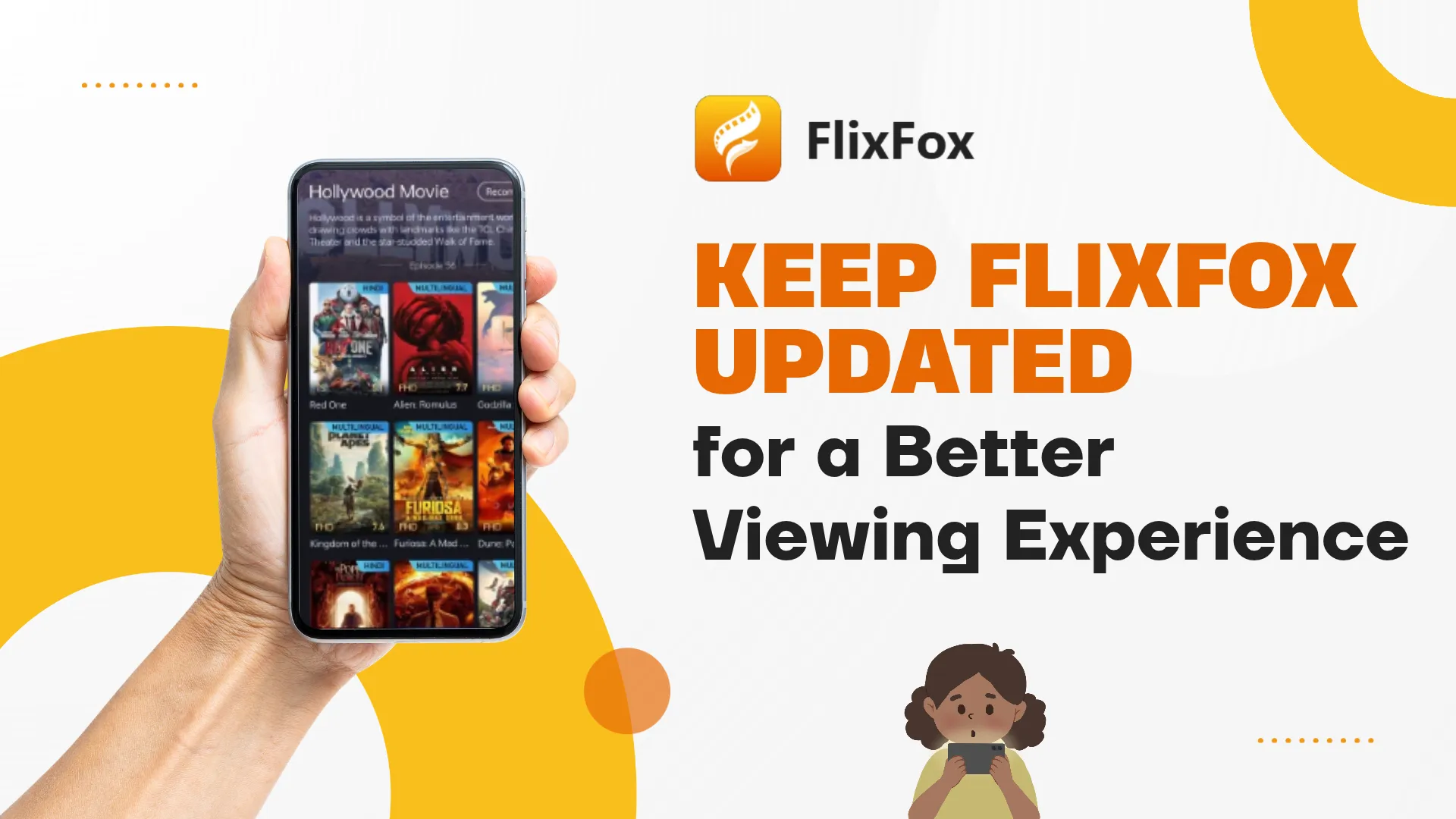
FlixFox open on a smartphone with different movie categories available.
To check your installed FlixFox version, open your phone's Settings, go to Apps, and select FlixFox to view its app details. Compare the version number with the latest release listed on the official website. If a newer version is available, download the APK from the official site and check its file size and update notes before installing it.
Common FlixFox Issues and Practical Fixes
Problems can occur during downloading, installation, or playback. The best way to fix an issue is to identify when it happens and follow the steps that match the problem.
APK Download Is Not Completing
A download may stop because of a weak internet connection, a browser issue, or a temporary interruption.
Try these steps:
- Check whether your internet connection is working.
- Make sure your device has enough free storage.
- Open your browser's download section and check the file status.
- Remove an incomplete file before starting a fresh download.
- Download the APK again from the official FlixFox website.
Wait until the download is complete before opening the file.
FlixFox Is Not Installing
If Android cannot install the APK, check whether your device meets the Android 6.0 minimum requirement and has enough free space. You may also see two common error messages during setup:
- Parse Error: This happens if the APK file is broken, incomplete, or built for a newer Android system. To fix it, delete the damaged file, check that your phone runs Android 6.0 or higher, and download a fresh copy from the official website.
- App Not Installed (Signature Conflict): This appears when an older build on your phone clashes with the new file's digital signature. To fix it, uninstall the existing FlixFox app from your phone first, then open the new APK file to finish the setup.
The App Closes Unexpectedly
An app may close or freeze if your phone runs low on memory or builds up corrupted temporary files. First, close FlixFox, shut down other background apps, and restart your phone.
If the app still crashes, clear its cache in your Android settings:
- Open your phone's Settings app.
- Tap Apps (or Apps & notifications) and select FlixFox from the list.
- Tap Storage & cache (or Storage).
- Tap Clear cache to remove temporary files without deleting your saved settings.
- Reopen FlixFox and check if it runs smoothly.
You can also check the official website for a newer version if the issue continues.
Videos Are Not Playing
If a video does not start, check your internet connection first. A weak or interrupted connection can prevent the stream from loading. Try opening another available title. If that video plays, the issue may be related to the first title. If no videos play, close and reopen FlixFox, check your connection, and try again.
Streaming Keeps Buffering
Frequent buffering can happen when your internet connection is slow or unstable. Try switching between Wi-Fi and mobile data to see whether playback improves. If the player offers quality settings, select a lower resolution. Move closer to your Wi-Fi router if the signal is weak, and pause other downloads or streaming activities using the same network. You can also close unused apps, restart the video, and check whether an app update is available.
Frequently Asked Questions
Do I Need an Account to Watch Videos?
No, you can open the app and watch free content without making an account or logging in. You only need to sign in if you decide to buy a Premium plan or want to save your watch history across devices.
Can I Use the Same FlixFox Account on Multiple Devices?
Yes, you can sign in with your account on different compatible devices. Your plan level may set limits on how many screens can stream at the exact same time.
Can I Download Movies to Watch Offline?
Yes, you can save supported titles inside the app to watch later without internet. Saved videos stay inside the app's Downloads tab rather than your phone's main video folder.
Does FlixFox Work on Android TV or Smart TVs?
It works on Android TV and Google TV boxes that support APK files. However, it will not run on Samsung or LG smart TVs because they use different operating systems.
What Happens to My Saved Downloads After Updating FlixFox?
Putting a new update right over your old app usually keeps your saved files safe. Finishing active offline downloads before you update helps protect your stored videos.
How Can I Recover Access to My FlixFox Account?
You can use the password recovery link on the sign-in screen if you forget your details. Type in your registered email to get a reset link and restore your access.
Conclusion
FlixFox APK puts movies, shows, live channels, and sports in one Android app. You can browse different sections and pick what you want to watch. Check the version number, file size, and Android version before you download. Get the file from the official website and follow the steps on your screen. Once the setup finishes, open the app and start watching.